 All Tools Verse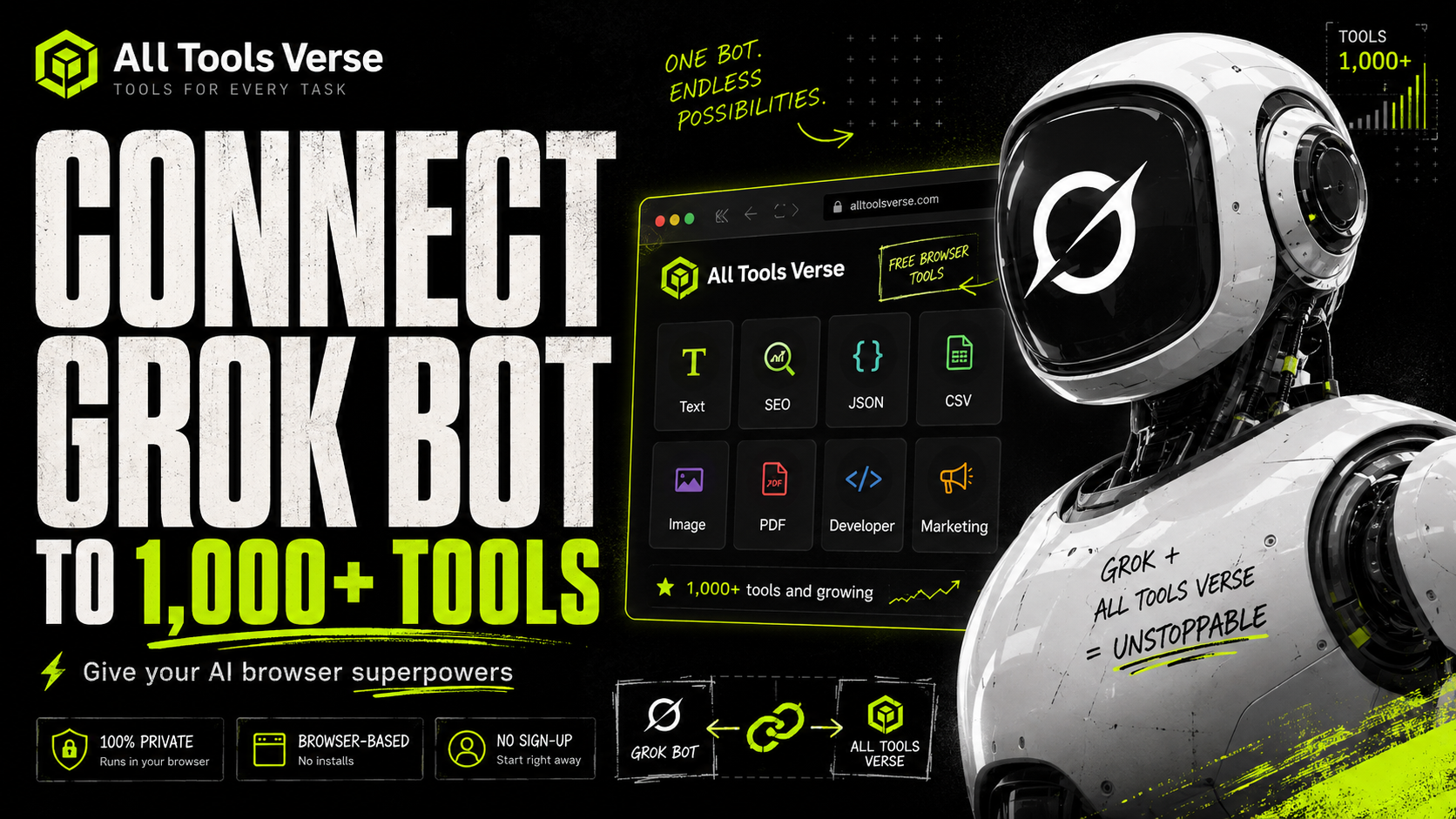
Grok Bot can work inside its own cloud computer. It can open a browser, use websites, work with files, download results and move from one step to the next.
That makes it a practical match for All Tools Verse. Our directory contains more than 1,000 free browser tools for text, SEO, development, JSON, CSV, images, PDFs, marketing and many other everyday tasks. You do not need an account with us or an API key.
The connection is simple. You tell Grok Bot to open our tool directory, choose the right utility, process the input and save the result. There is no plugin from us to install and no MCP server to configure.
This guide shows you how to set it up, which categories work best and how to turn a one-time browser task into a reusable Grok Bot workflow.
Important: Every tool in our directory is free to use. Access to Grok Bot is separate and depends on the plan or beta access available to your account.
What does it mean to connect Grok Bot to All Tools Verse?
This is a browser workflow, not a native software integration.
Grok Bot opens our complete tool directory in its browser. It can search for a tool, open the tool page, enter text, select options, use a file from its workspace and save the output.
For example, you can ask it to:
- Check an article with our Readability Score Checker
- Validate and format a payload with our JSON tools
- Resize and compress a website image with our image tools
- Extract text from a PDF with our PDF to Text Extractor
- Build a campaign URL with our UTM Builder
The useful part is not simply giving Grok Bot access to a large directory. The useful part is teaching it which tool to choose, what result to produce and when it must stop for your approval.
How to connect Grok Bot to All Tools Verse
1. Create a focused Grok Bot
Give the Bot one clear role. A focused Bot is easier to control and produces more consistent results than a general Bot that tries to handle everything.
Good starting roles include:
- All Tools Verse Operator
- Content and SEO Assistant
- Developer Utilities Assistant
- Image and Document Assistant
- Marketing Asset Assistant
2. Give it our tool directory and clear operating rules
Paste the following instructions into the Bot:
You are my All Tools Verse operator.

Use https://alltoolsverse.com/tools/ as your default browser toolbox for focused tasks involving text, SEO, structured data, code, CSV files, images, documents and marketing assets.

For every task:
1. Choose the smallest suitable tool or tool sequence.
2. Tell me which All Tools Verse tool you selected and why.
3. Keep every original file unchanged.
4. Save outputs in a folder named AllToolsVerse Outputs.
5. Use clear filenames that describe the result.
6. Return the tool URL, input, settings, output filename and any warning.
7. Validate the output when a suitable validation tool is available.
8. Ask for approval before publishing, sending, deleting, overwriting, purchasing or changing a live system.

Do not enter passwords, API keys, private tokens or confidential customer data into a browser tool.
These instructions give Grok Bot a starting point, a tool selection rule, an output location and clear approval boundaries.
3. Run one simple test
Start with a task that has an obvious result. The Character Counter is a good first test because you can verify the output immediately.
Open the All Tools Verse Character Counter.

Paste the text from draft.txt.

Return:
1. Character count
2. Word count
3. Sentence count
4. Paragraph count
5. Estimated reading time

Do not edit or overwrite draft.txt.
After the Bot completes that task, ask it to open the Readability Score Checker and review the same file.
4. Define the output before the Bot starts
A vague request creates a vague workflow.
Avoid this:
Improve this article with All Tools Verse.Use this instead:
Review article-draft.md with the relevant All Tools Verse text and SEO tools.

Return a Markdown report containing:
1. Word count and reading time
2. Readability score
3. Repeated keywords and phrases
4. Title length check
5. One suggested meta title
6. One suggested meta description
7. Any problem that needs human review

Do not rewrite or publish the article.
The second version defines the source, the checks, the deliverable and the stopping point.
5. Review the tool log
For every browser task, ask Grok Bot to report:
- The exact All Tools Verse tool page
- The input it used
- The settings it selected
- The output filename
- Any warning or validation error
- Any step that still needs your approval
This makes the process easier to audit and repeat.
How Grok Bot should choose a tool
More tools do not automatically produce a better result. A good workflow uses the shortest reliable path.
Use these rules:
- Start from the most relevant tool category.
- Choose one primary tool for the main task.
- Add a second tool only when it validates or completes the result.
- Keep the original input unchanged.
- Save each output as a new file.
- Stop for approval before any public or destructive action.
For example, an image workflow may need Resize Image followed by Compress Image. It does not need ten unrelated image tools.
The best All Tools Verse categories for Grok Bot
The categories below work especially well because they produce measurable results, clean conversions or downloadable files.
1. Text and SEO tools
Start with our Text Tools and SEO Tools when Grok Bot is reviewing articles, landing pages, product copy or social content.
A practical content review can use:
- Character Counter for characters, words, sentences, paragraphs and reading time
- Readability Score Checker for a readability score
- Keyword Density Checker for repeated words and phrases
- Meta Title Length Checker for title length and search display width
- SERP Preview Tool for a search result preview
- Meta Tags Generator for title, description, canonical, robots, Open Graph and social tags
- Open Graph Preview for social sharing previews
- Article Schema Generator for Article, NewsArticle or BlogPosting JSON-LD
- FAQ Schema Generator when the page contains a visible FAQ section
- Structured Data Tester for a final structured data check
For mechanical cleanup, Grok Bot can also use our Case Converter, Duplicate Line Remover and Find and Replace.
Example content review prompt
Open article-draft.md.

Use the All Tools Verse Character Counter, Readability Score Checker, Keyword Density Checker, Meta Title Length Checker and SERP Preview Tool.

Create content-review.md with:
1. The result from each tool
2. Three specific problems
3. Three suggested corrections
4. One meta title
5. One meta description

Do not modify article-draft.md and do not publish anything.
Do not ask the Bot to use every SEO tool on every page. A short update may only need a title and metadata check. A long evergreen guide may also need readability, phrase analysis, schema and social previews.
2. Developer, JSON and CSV tools
Use our Developer Tools, JSON Tools and CSV Tools for structured data, code snippets, debugging and file cleanup.
A reliable JSON sequence is:
- Validate JSON
- Analyze JSON
- Prettify JSON
- Censor JSON when you need a redacted documentation copy
- Flatten JSON Object when a flat structure is required
- Minify JSON when you need a compact output
For CSV work, use Validate CSV to check row consistency and Extract CSV Columns to create a smaller handoff file.
Other useful developer tools include:
- Diff Checker for comparing two text or code versions
- Convert cURL to Python Requests for turning a safe cURL example into Python code
- AI Token Counter for estimating prompt size and model cost
- Crontab Generator for building cron expressions
- Cron Parser for checking upcoming run times
Example JSON cleanup prompt
Open payload-sanitized.json.

Use All Tools Verse to:
1. Validate the JSON
2. Analyze its keys, depth and value types
3. Create a prettified copy
4. Create a redacted copy for documentation
5. Create a flattened copy

Save:
1. payload-pretty.json
2. payload-redacted.json
3. payload-flat.json
4. payload-report.md

Keep the source file unchanged. In the report, include every tool URL, every validation error and every key that was redacted.
Use a sanitized payload. Remove real passwords, access tokens, customer records and other confidential values before the file reaches Grok Bot’s cloud computer.
3. Image tools
Our Image Tools are useful when Grok Bot needs to create exact web asset variants from an existing file.
A common image workflow is:
- Inspect the source with Analyze Image
- Set exact dimensions with Resize Image
- Reduce the file size with Compress Image
- Convert a PNG with PNG to WebP
- Add a visible label with Add Watermark to Image when required
- Remove hidden metadata with EXIF Data Remover
- Hide a selected face with Blur Face in Image when privacy requires it
Give the Bot exact requirements. “Make this image web ready” is too vague. Specify the dimensions, output format, maximum file size and filename.
Example image optimization prompt
Open hero-source.png.

Use All Tools Verse to:
1. Analyze the source image
2. Create a 1200 by 630 version without stretching it
3. Compress the result below 250 KB when possible
4. Convert the optimized file to WebP
5. Remove EXIF metadata from the final copy

Keep hero-source.png unchanged.

Save the final file as hero-1200x630-optimized.webp and return the dimensions, file size, compression settings and tool URLs.
For additional guidance, read our tutorials on how to compress an image, how to remove EXIF data and the best free WebP tools.
4. Document and PDF tools
Use our Document Tools when a workflow starts or ends with a PDF, Markdown file or HTML document.
Useful options include:
- PDF to Text Extractor for extracting readable text from a PDF
- Merge PDF for combining documents in a chosen order
- Compress PDF for creating a smaller copy
- Markdown to PDF for turning a report into a PDF
- HTML to Markdown for converting HTML into cleaner working text
Example PDF workflow
Open the files in the Client Report folder.

Use All Tools Verse to:
1. Extract the text from each PDF into separate text files
2. List the page count and filename of each source
3. Merge the PDFs in alphabetical filename order
4. Compress the merged copy
5. Save a Markdown report describing the final page order

Keep every source PDF unchanged.

Before merging, show me the proposed order and ask for approval.
The approval step matters because a technically valid merged PDF can still have the wrong document order. Our guide on how to merge PDF files explains the manual process in more detail.
5. Marketing tools
Our Marketing Tools work well for repeatable checks and asset preparation before a campaign goes live.
Useful tools include:
- UTM Builder for creating a tracked campaign URL
- UTM Parameter Parser for reading an existing tagged URL
- UTM Parameter Stripper for creating a clean sharing URL
- QR Code Generator for turning a URL into a downloadable QR code
- Email Subject Line Tester for checking length, common spam triggers and emoji use
- Social Post Length Checker for checking copy against platform limits
- ROAS Calculator for calculating return on ad spend
Example campaign preparation prompt
Open campaign-copy.txt and campaign-hero.png.

Use All Tools Verse to create:
1. A UTM-tagged campaign URL
2. A QR code in PNG and SVG
3. A social post length report
4. An email subject line report
5. A 1200 by 630 compressed WebP image

Save everything in a folder named Campaign Asset Pack.

Do not post, email, upload or publish any asset. Return the filenames, settings and tool URLs for approval.
These tools prepare links, reports and assets. They do not need permission to launch ads, send an email or publish a post.
Quick Grok Bot tool map
| Task | Start with | Optional next step |
|---|---|---|
| Count and measure copy | Character Counter | Readability Score Checker |
| Review repeated phrases | Keyword Density Checker | Find and Replace |
| Preview a search result | Meta Title Length Checker | SERP Preview Tool |
| Build page metadata | Meta Tags Generator | Open Graph Preview |
| Create structured data | Article Schema Generator | Structured Data Tester |
| Compare two versions | Diff Checker | Save a patch or report |
| Clean a JSON payload | Validate JSON | Prettify JSON |
| Prepare a CSV handoff | Validate CSV | Extract CSV Columns |
| Optimize a web image | Resize Image | Compress Image |
| Extract content from a PDF | PDF to Text Extractor | Markdown to PDF |
| Build a campaign link | UTM Builder | QR Code Generator |
Three complete workflows you can copy
Workflow 1: Create an SEO review package
Use this workflow when you want Grok Bot to inspect an article without changing the source.
Open article-draft.md from the Content Review folder.

Use these All Tools Verse tools in order:
1. Character Counter
2. Readability Score Checker
3. Keyword Density Checker
4. Meta Title Length Checker
5. SERP Preview Tool
6. Meta Tags Generator
7. Article Schema Generator
8. FAQ Schema Generator only if the article contains a visible FAQ section
9. Structured Data Tester

Return one Markdown report with:
1. Word count and reading time
2. Readability score
3. The ten most repeated meaningful phrases
4. Three title options
5. One meta description
6. The generated metadata
7. The Article JSON-LD
8. The FAQ JSON-LD when applicable
9. Structured data test results
10. A list of problems that need human review

Do not edit the source article. Do not publish anything.
This workflow keeps writing and checking separate. Grok Bot can suggest changes, while the tool results provide measurements and code that you can inspect.
Workflow 2: Prepare a safe JSON documentation pack
Open payload-sanitized.json.

Use these All Tools Verse tools:
1. Validate JSON
2. Analyze JSON
3. Prettify JSON
4. Censor JSON
5. Flatten JSON Object
6. Diff Checker to compare the source and redacted copies

Save:
1. payload-pretty.json
2. payload-redacted.json
3. payload-flat.json
4. payload-changes.patch
5. payload-report.md

Keep the original unchanged.

In the report, list the exact tool pages used, all validation errors, all redacted keys and a summary of the differences.
The word “sanitized” is important. Do not rely on a redaction tool as your first security boundary. Remove secrets before the file is placed in the Grok Bot workspace.
Workflow 3: Build a web campaign asset pack
Open campaign-hero.png, campaign-copy.txt and campaign-url.txt.

Use All Tools Verse to:
1. Resize the image to 1200 by 630
2. Compress it below 250 KB when possible
3. Convert it to WebP
4. Remove EXIF metadata
5. Build a campaign URL with the agreed UTM values
6. Create a QR code in PNG and SVG
7. Check the social post length
8. Test the email subject line

Save every output in Campaign Asset Pack.

Keep all source files unchanged.
Do not publish, send or upload anything.
Return a manifest containing every filename, file size, setting and tool URL.
This gives you a complete review package without allowing the Bot to perform the final public action.
Turn a successful workflow into a Grok Bot skill
Once a workflow works correctly, ask Grok Bot to save the process as a reusable skill.
Save the process we just completed as a skill called All Tools Verse Operator.

Include:
1. When to use the skill
2. The approved All Tools Verse category and tool URLs
3. Required inputs
4. The exact order of operations
5. Validation steps
6. Output naming rules
7. The final report format
8. Actions that always require my approval
Run the skill manually several times before scheduling it. A routine should automate a stable process, not an untested idea.
A safe routine prompt can look like this:
Every Friday at 16:00 in my timezone, check the Weekly Content Review folder.

When new files are present, run the All Tools Verse Operator skill and prepare a review report.

Do not publish, email, delete or overwrite anything. Stop after the report and request approval.
Web pages can change. Review the workflow whenever a tool interface, input format or source file structure changes.
Privacy and security
Our tools process data inside the browser. When you use them on your own computer, the processing happens in your local browser. When Grok Bot uses them, the processing happens inside the browser on Grok Bot’s cloud computer.
That distinction matters. The file is not being processed on your laptop simply because the tool is browser-based.
Use these rules:
- Remove passwords, private tokens, API keys and unnecessary personal data before giving a file to Grok Bot.
- Use sanitized copies for logs, payloads, customer records and internal documents.
- Keep source files unchanged and create separate outputs.
- Require approval before publishing, sending, deleting, purchasing or changing a live system.
- Remove temporary sensitive files after you review the result.
- Review Grok Bot’s current workspace and privacy rules before using confidential material.
Browser-side processing is useful, but Grok Bot’s browser runs in a cloud environment. Treat it as a cloud workspace, not as a private folder on your local computer.
Common mistakes to avoid
Giving the Bot access without a clear task
“Use any tool you need” is too broad. Give it a category, a result and a short approved tool list.
Using too many tools
Every extra browser step creates another place where the workflow can fail. Use the smallest sequence that produces a verifiable result.
Leaving the output undefined
State whether you need Markdown, JSON, CSV, PNG, SVG, WebP, PDF or plain text. Add filenames, dimensions and file size limits where relevant.
Allowing source files to be overwritten
Always require a new output file. Keep the original for comparison and recovery.
Automating before testing
Complete the workflow manually, review it, save it as a skill and schedule it only after the results are consistent.
Allowing automatic publishing
A content check, image conversion or campaign report can run without supervision. Publishing, sending, deleting and making live changes should still require approval.
Calling the entire setup free
Every tool in our directory is free to use. Grok Bot access is separate and may depend on your current plan or beta eligibility.
Frequently asked questions
Do I need an API key to connect Grok Bot to All Tools Verse?
No. Grok Bot uses our tools through its browser. You do not need an API key or an account with us.
Do I need an MCP server or plugin?
No. This setup is a browser workflow. Grok Bot opens the tool page and uses it like a user would.
Is All Tools Verse free?
Yes. Every tool in our directory is free to use. You do not need to create an account, and there is no All Tools Verse paywall between Grok Bot and the tools.
Is Grok Bot free?
Grok Bot access is separate from our free tool directory. It depends on the current plan or beta access available to your account.
Can Grok Bot work with files?
Yes, when the files are available inside its cloud workspace. Keep original files unchanged, use sanitized copies and ask the Bot to save each output with a clear filename.
Can Grok Bot continue when my laptop is closed?
Its work runs on a cloud computer, so it is not dependent on keeping your local browser or laptop open. Always review the final output before using it.
Is Grok Bot a Twitter bot?
Grok Bot is an xAI product with computer and browser capabilities. It can help with X-related work, but the setup in this guide does not use a special Twitter integration. It uses Grok Bot’s browser to open All Tools Verse.
Which category should I test first?
For articles and website content, start with Text Tools and SEO Tools. For technical work, start with Developer Tools, JSON Tools and CSV Tools. For files and assets, use Image Tools and Document Tools.
Can I automate the workflow?
Yes. First complete the task manually, then save the reliable process as a skill. Add a routine only after you have tested the inputs, outputs and approval rules.
Start with one tool and one result
Open our complete tool directory and choose one task that you can verify easily.
Give Grok Bot the source file, the exact result you need, the approved tools, the output format and the point where it must stop for review. Once the workflow is reliable, save it as a skill and reuse it.
Grok Bot provides the cloud computer and browser. We provide the focused browser tools. Your instructions connect the two.